
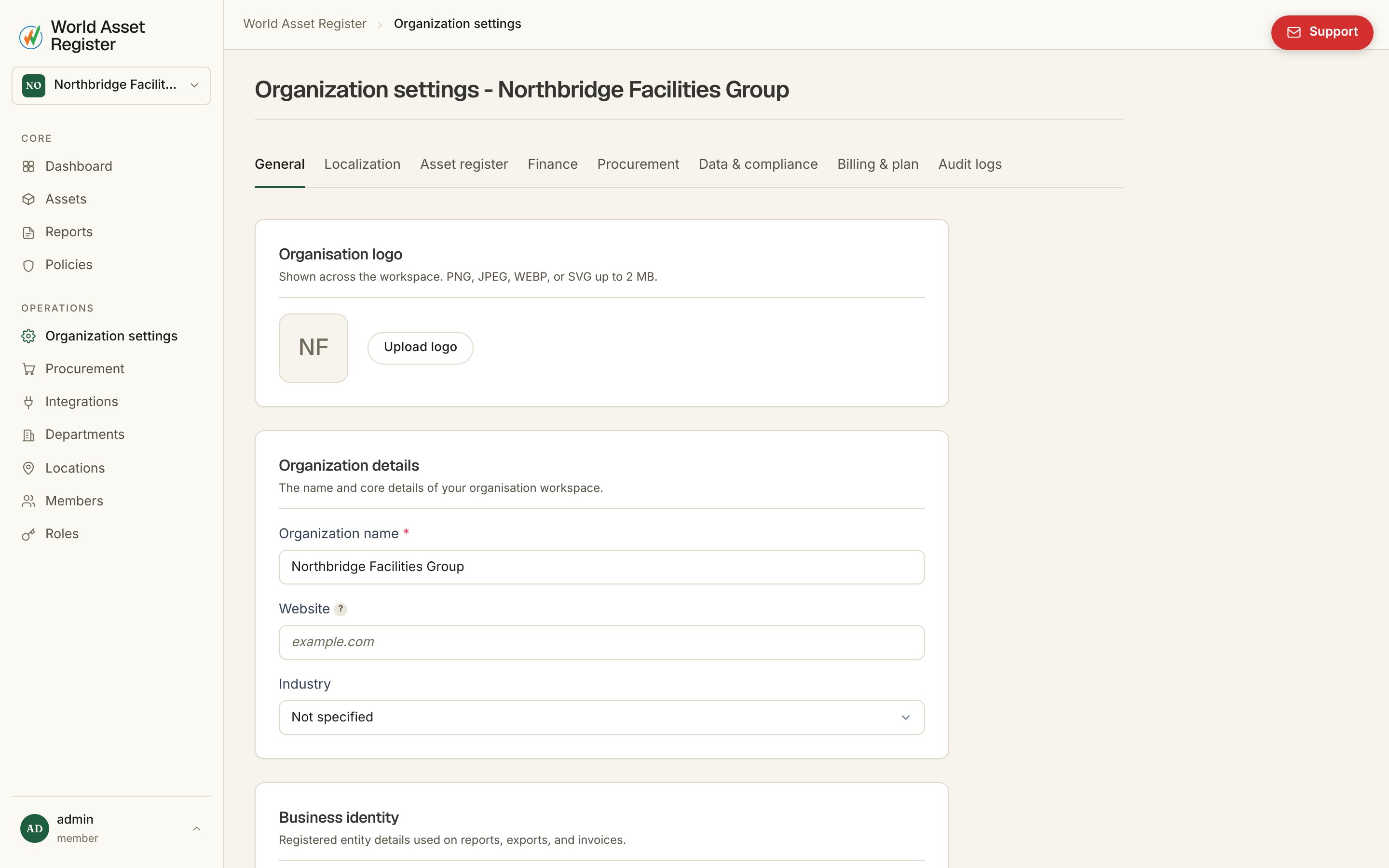
General
Your organisation’s identity: logo, legal name, industry, business or tax registration number, contact details and registered address. The logo you upload here appears throughout the app and on printed asset labels. A danger zone at the bottom holds organisation deletion, guarded by a typed confirmation.Localization
Sets the organisation’s default time zone and currency. This is the fallback used for any member who hasn’t set their own, and for “rationalised” views (procurement, reports, dashboards) that need one consistent currency to total across. Members can normally override these individually in their own account. An admin can also lock localisation so every member sees the same time zone and currency regardless of their personal preference. A workspace starts on the time zone of the browser it was created from, and a workspace that predates that rule adopts the time zone of the first member to sign in. Either way, the moment anyone saves a time zone here it is settled and nothing changes it again. Set it deliberately if your organisation runs to a clock that is not the founder’s.Asset register
The category tree and field editor. See Categories and fields for the full picture.Finance
Configures how depreciation is calculated across the register: which asset field feeds each role in the depreciation maths, the available depreciation methods (including formula-based custom methods), and the variables and functions available to those formulas.Procurement
Settings behind the procurement forecast: configurable procurement reasons (replacement, expansion, and whatever categories your organisation tracks), which cost figures feed forecasting, and the inflation projection applied to future estimates.Data & compliance
Three things live here:- Data residency: shows which region this workspace’s data is hosted in. It is read-only: there is no self-service selector, and changing it means contacting support.
- Artificial intelligence: an organisation-wide switch for AI features (the assistant, magic fill, invoice scanning). Turning it off disables all of them at once.
- Policy library and report library: reset either back to the built-in defaults. Useful if custom policies or report templates have drifted somewhere you don’t want.
Billing & plan and Audit logs
Covered in their own chapters: Plans and billing and Audit log and rollback.Notification rules, who gets emailed or alerted about what, live under Policies, not here. See Policies.