
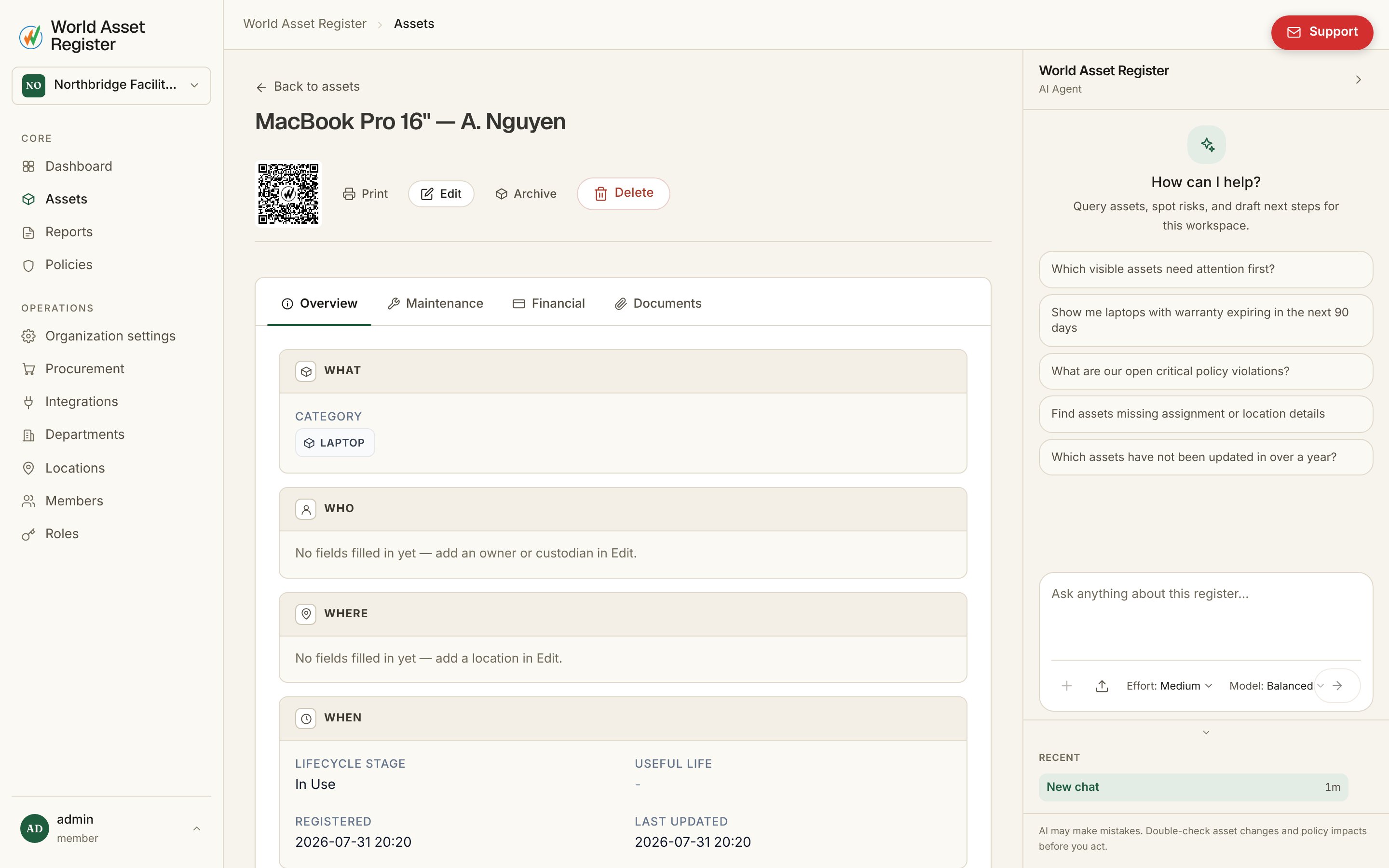
The header
The top of the page carries the asset’s identity and its quick actions:- QR code: every asset has one, linking straight to this page. The print button opens a printable label, so you can sticker the physical item. Anyone who scans it later lands here.
- Archive, Unarchive and Delete: archiving hides the asset from day-to-day views while keeping its history (see the difference). Deleting is permanent and permission-guarded. If your role can only request these actions, the buttons become Request archive and Request delete, and route through change requests instead.
- Change request flag: an orange flag appears whenever this asset has edits waiting for approval. Click it to review them.
Editing
Hit Edit and every field becomes editable in place. The save button floats with you and saves without closing the page, so you can keep working through fields. It’s the same editor you get when creating an asset, in the bulk edit panel, and here. Two things worth knowing:- Money fields carry their own currency. Purchase cost, current value and any custom currency field each store an amount and a currency, so a register spanning AUD, USD and EUR stays honest, and reports convert for you.
- Fields you can’t change directly (per your role) are either hidden, read only, or marked as request only. Editing a request-only field submits a change request rather than saving.
Tabs
Which tabs an asset shows depends on its category. A vehicle needs a maintenance history, a software licence doesn’t. Administrators switch these on per category under Categories and fields.- Overview (always shown): every field on the asset, grouped and formatted, including who holds it (owner, custodian) and where it is.
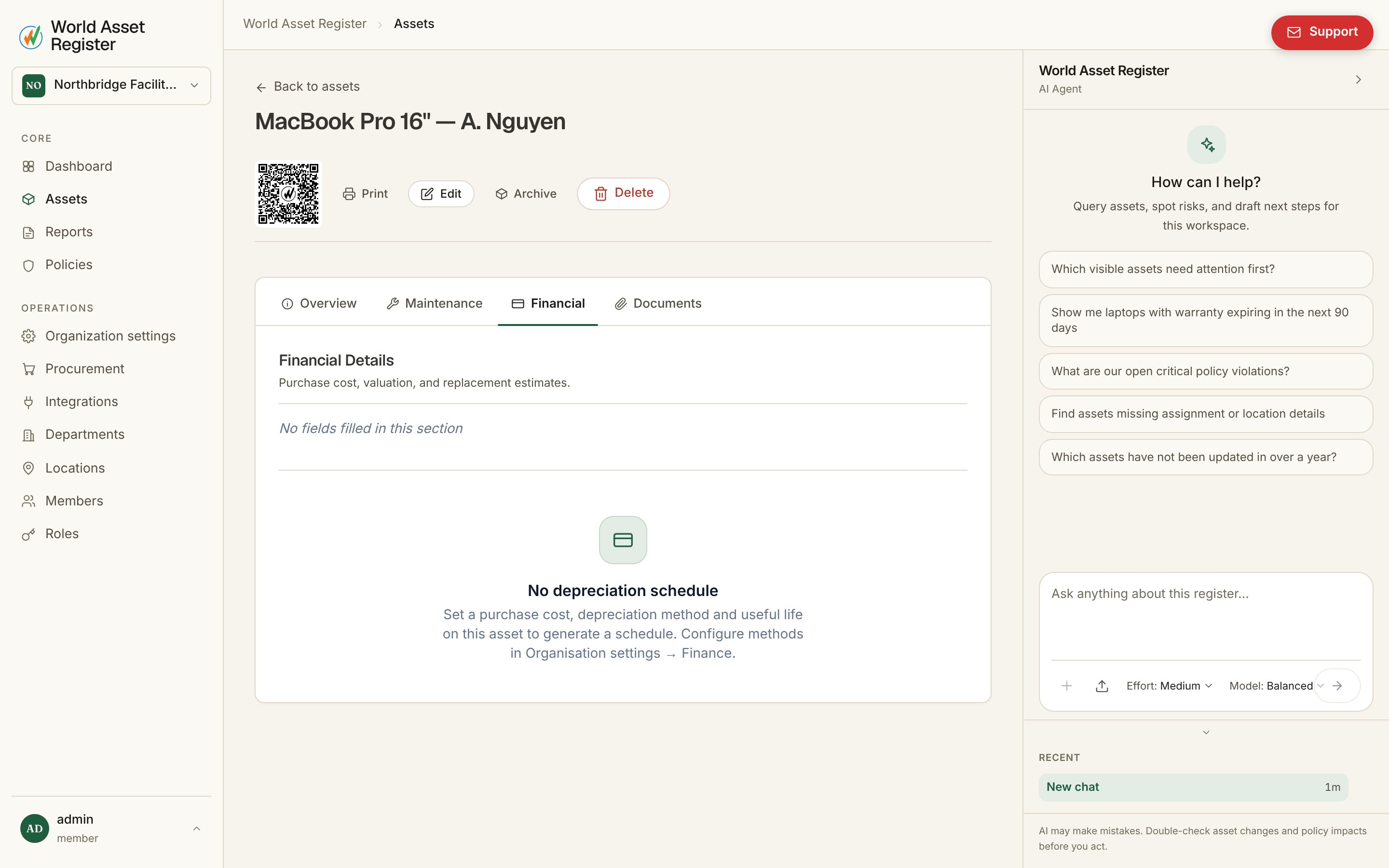
- Financial: purchase cost, current valuation and replacement estimates, plus the depreciation schedule. Pick a method and the book value curve is calculated for you, year by year.
- Maintenance: the service history. Each record carries a date, cost (with currency), notes and attachments, and its own change history. A useful trick is Copy to other assets, which applies the same maintenance record across many assets at once. One entry covers the day the whole fleet was serviced.
- Documents: invoices, warranties, manuals, photos. PDFs and images preview in the browser, and Office files download. Everything is stored against the asset, so the paperwork is wherever the asset is.