
Selecting assets
Tick the checkbox on any rows in the register, or the header checkbox to select the whole page. The selection toolbar appears the moment anything is selected, showing the count and the actions you can take. Selection plays well with filters. Filter down to “everything at the old office,” select all, act once.Edit fields
Edit fields opens the edit panel over the register: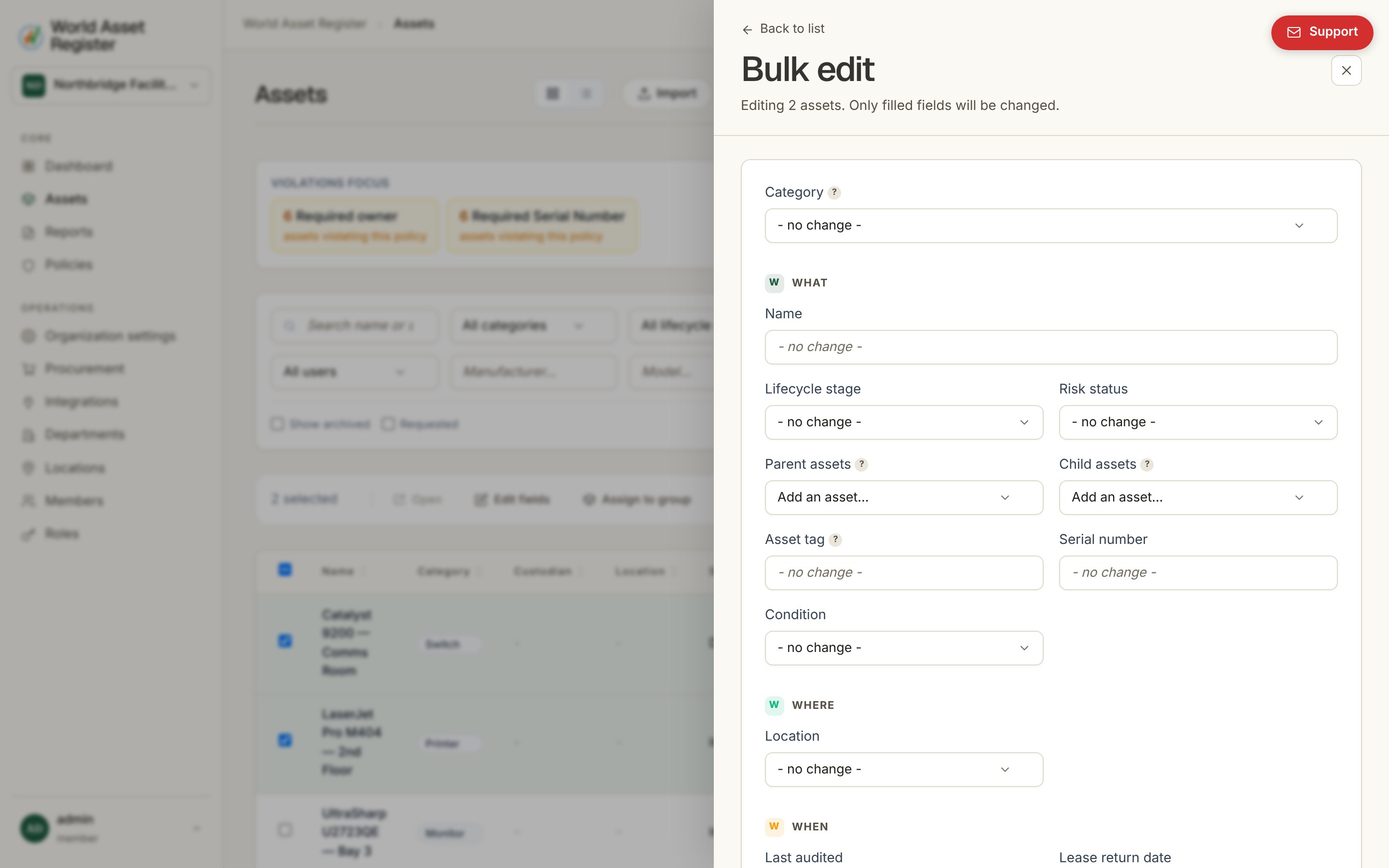
- One asset selected: you get the full asset editor, pre-filled with its current values. Handy for quick fixes without leaving the list.
- Several selected: every field starts as no change. Only the fields you actually fill in are applied, to every selected asset. Everything else is left exactly as it was. Set Location and nothing but location changes on all of them.
Adding to a multi-select without wiping it
A multi-select field (regulatory markings, for example) holds several options at once, and each asset holds a different set. Above the picker, choose how your change lands:- Replace: the options you pick become the whole set on every selected asset. Anything they carried before is gone.
- Add: the options you pick are ticked on top of whatever each asset already has. This is how you put UKCA on forty parts without knowing, or destroying, the rest of each part’s markings.
- Remove: the options you pick are unticked, and everything else each asset carries stays.
Placing several assets on the map at once
The Location field in the bulk panel also offers Place on map: the same map picker a single asset uses, opened for the whole selection. Click one point anywhere on the map and every selected asset is placed there: one shared pin, useful for a pallet or a shipment that arrived together. If that point falls inside a drawn room or building outline, the Location field is set to it on every asset too, the same as picking a point for one asset does. Assets you don’t have permission to place, or that aren’t shown on the map, are skipped rather than failing the whole action. If any are skipped you’ll see how many were placed and how many weren’t.Groups
The selection toolbar can also assign the selected assets to a group, a named, coloured label like Loan pool or FY26 refresh. Groups appear as chips above the register for one-click filtering, and each asset shows its groups on its row, where they can be removed individually. Groups are labels, not locations. Use them for cohorts and projects that cut across categories and sites.Archive, unarchive, delete
The remaining bulk actions do exactly what their confirmations say:- Archive hides the selected assets from day-to-day views while keeping their history: the reversible way to clear things out. Archived assets show an ARCHIVED badge, and selecting them offers Unarchive instead.
- Delete permanently removes the selected assets, and is guarded by its own permission and a confirmation. When in doubt, archive. You can always delete later, but never un-delete.