This chapter takes you from a fresh account to a small working register: you’ll sign in, set up an organisation, add an asset by hand, import a spreadsheet, and invite a teammate.

Sign in

Go to worldassetregister.com and choose Sign in. If a colleague invited you, use the link in the invitation email instead. It signs you in and drops you straight into their organisation.

Your organisation and workspaces

Everything in World Asset Register belongs to an organisation. If you’re the first person from your company here, you’ll be asked to create one. Pick the name your team actually uses day to day. If you belong to several organisations (for example a parent company and a subsidiary), the workspace switcher in the sidebar moves between them. Each organisation’s data is completely separate.

The dashboard

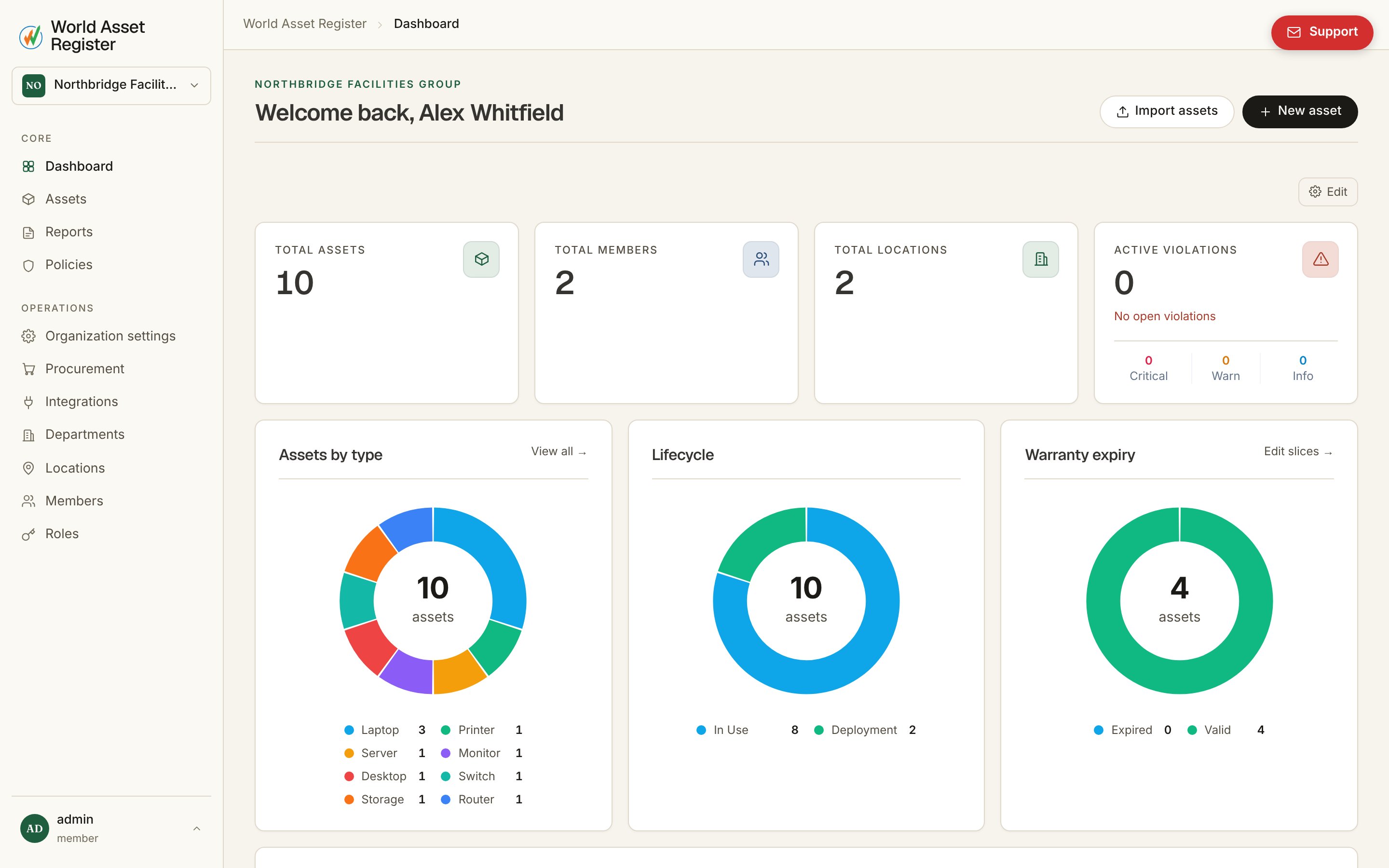
The dashboard The dashboard is the landing page for your organisation. It shows headline counts, recent activity, and shortcuts into the areas of the product you use most. It fills in as your register grows. A brand-new organisation will look sparse, and that’s normal.

Add your first asset

Open Assets in the sidebar and choose Add asset. The asset register Three things matter on this form:
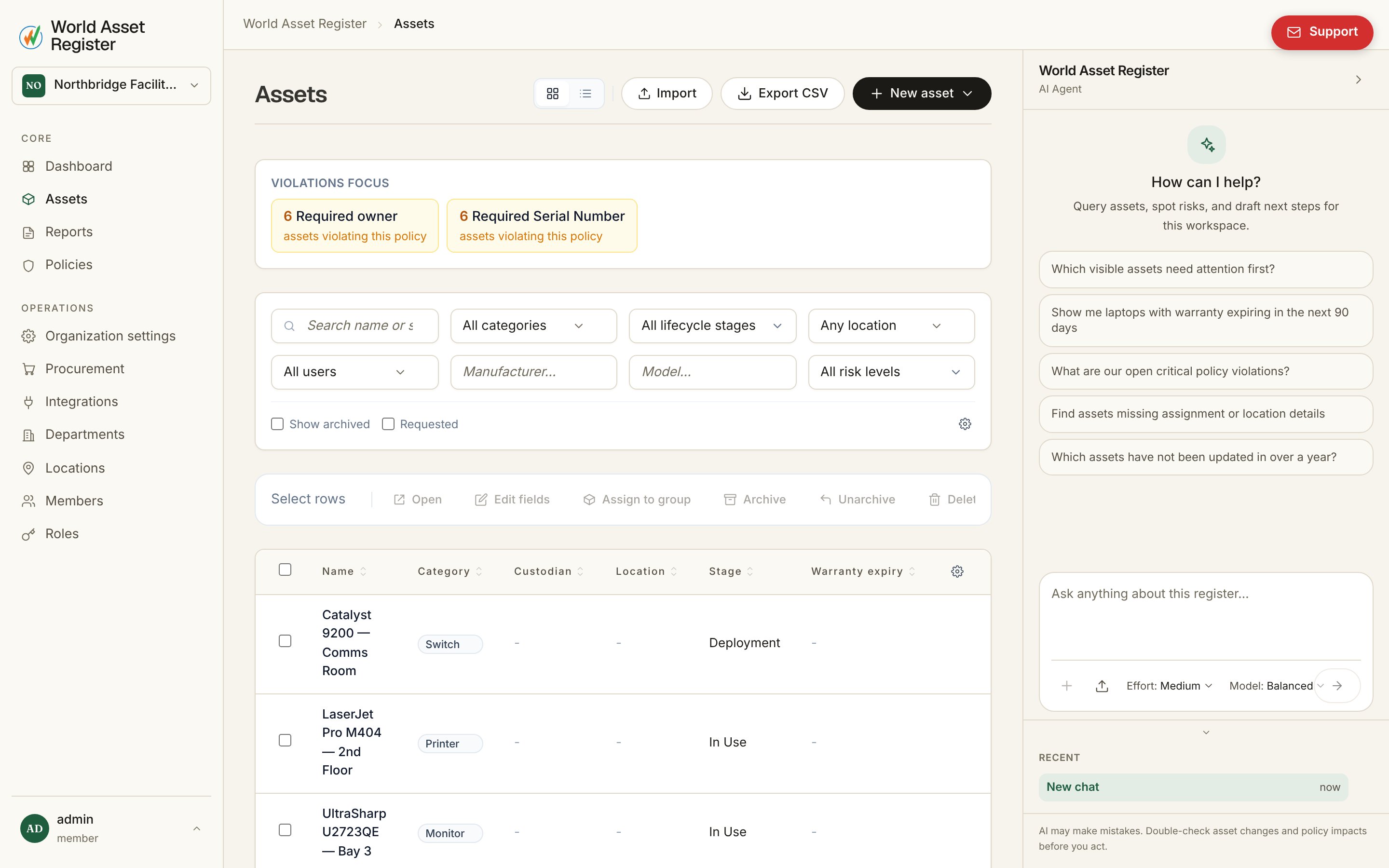
  • Name: what your team calls the thing. You can be loose here. The register is searchable.
  • Category: what kind of thing it is. The category decides which fields the asset carries (a vehicle has an odometer, a laptop has a serial number), so pick the closest match. You can refine categories later. See Categories and fields.
  • Everything else is optional. Location, owner, purchase details and photos can all be added now or later. The save button follows you as you fill things in, so you can save at any point and keep editing.

Import a spreadsheet

Nobody types in five hundred assets. If your register currently lives in a spreadsheet, open Assets → Import and upload it (CSV and Excel both work). The importer walks you through matching your columns to fields and shows a full preview of exactly what will be created or updated before anything is committed. It also flags rows it isn’t sure about. Large files run in the background with a progress bar, so you can leave the page. The full walkthrough, including how re-imports update existing assets instead of duplicating them, is in Importing data.

Invite your team

Open Members and choose Invite. Every member gets one or more roles, and roles decide what a member can see and do. Viewers can look, custodians can update what they hold, admins can change anything. Roles and permissions are covered properly in Roles and permissions.

If you get stuck

The built-in AI assistant (the panel on the right of the app) can answer questions about your own data, like “which laptops are unassigned?” It can also make changes for you with your permission. It’s often the fastest way to learn what the product can do. See The AI assistant.