
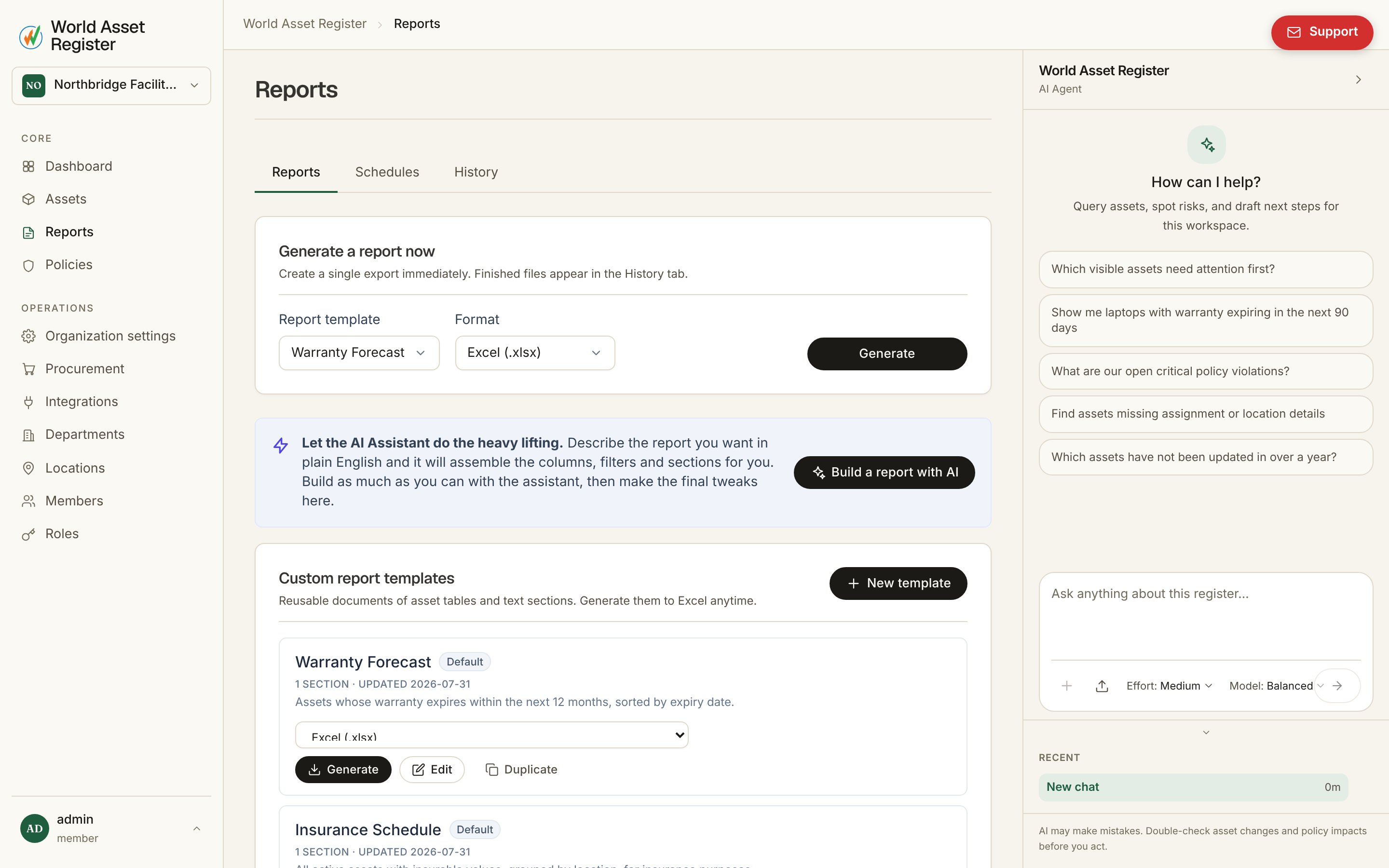
Building a report template
Open Reports and use the template builder to lay out sections:- Asset table: a row per asset, with the columns, filters, sort order and row limit you choose.
- Summary table: rows grouped by a field (say category or location), with aggregate columns like count, sum, average, minimum or maximum, and support for custom math formulas.
- Text section: freeform notes or a title for the report.
- Manual table: a table you fill in by hand, for anything that isn’t pulled from the register.
Generating a report
From the Generate tab, pick a saved template and a format (Excel or CSV), then run it. Finished files appear in the History tab with their status, so a large report you started earlier is easy to find again without regenerating it. Delete on a History row asks you to confirm first, because it removes the run and its stored file and can’t be undone.Templates
Every organisation starts with six built-in templates, ready to generate immediately with no setup:- Warranty Forecast — assets whose warranty expires within the next 12 months, soonest first.
- Insurance Schedule — active assets with insurable values, grouped by location.
- IT Refresh Report — active asset inventory for lifecycle review and refresh planning.
- Lifecycle Summary — assets summarised by lifecycle stage and by category.
- TCO Breakdown — total cost of ownership, highest first.
- Upcoming Lease Returns — leased assets (lessor, lease dates, payment amount, end-of-lease action) sorted by return date, soonest first.