> ## Documentation Index
> Fetch the complete documentation index at: https://docs.worldassetregister.com/llms.txt
> Use this file to discover all available pages before exploring further.
# Categories and fields
> Shape the register around what your organisation actually owns
Nothing in World Asset Register is hard-coded to "laptops" or "vehicles."
Every field an asset carries comes from its **category**, and you control
the category tree completely. This is configured under **Organisation →
Asset register**.
 ## The category tree
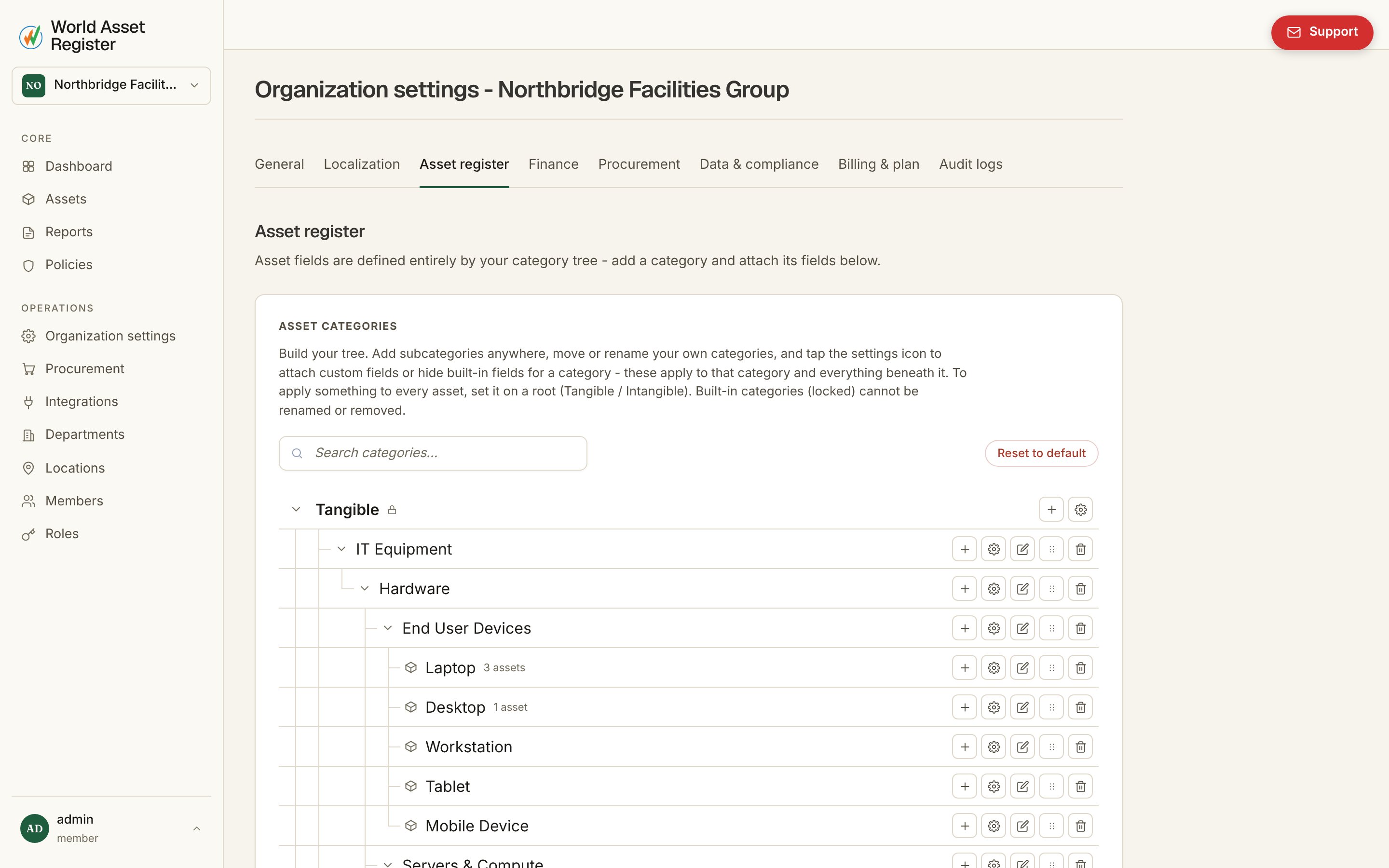
Categories nest as deep as you like, for instance *Tangible → IT
Equipment → Laptops → Executive laptops*. Two roots, **Tangible** and
**Intangible**, always exist and can't be renamed or removed. Everything
else is yours. Add subcategories anywhere, rename them, drag them to a
new parent, or delete them.
Configuration set on a category applies to it **and everything beneath
it**. Set a field on *IT Equipment* and every category under it inherits
it automatically. To apply something to literally every asset, set it on
one of the two roots.
## Fields for a category
Click the settings icon on any category to open its field editor:
## The category tree
Categories nest as deep as you like, for instance *Tangible → IT
Equipment → Laptops → Executive laptops*. Two roots, **Tangible** and
**Intangible**, always exist and can't be renamed or removed. Everything
else is yours. Add subcategories anywhere, rename them, drag them to a
new parent, or delete them.
Configuration set on a category applies to it **and everything beneath
it**. Set a field on *IT Equipment* and every category under it inherits
it automatically. To apply something to literally every asset, set it on
one of the two roots.
## Fields for a category
Click the settings icon on any category to open its field editor:
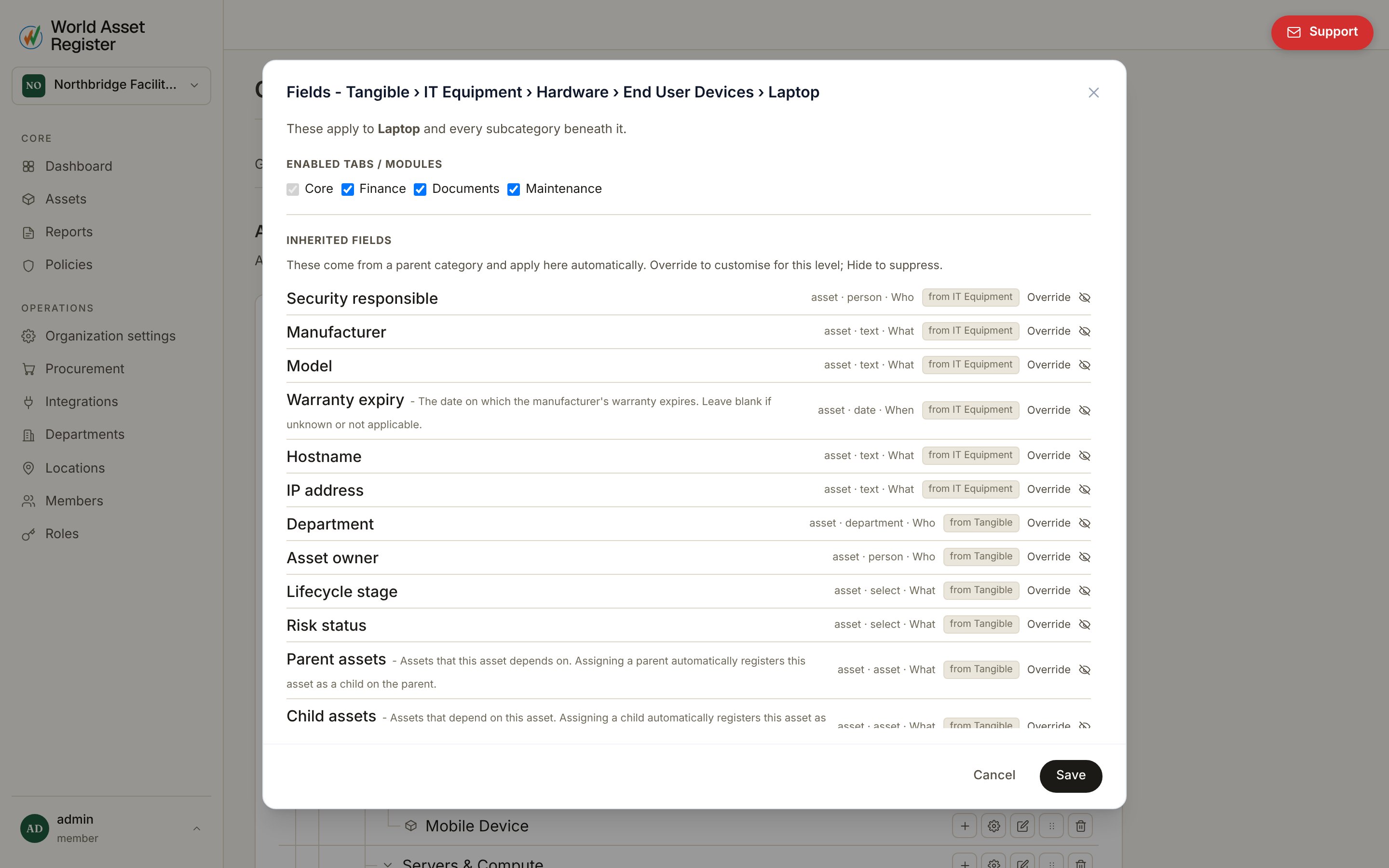 * **Inherited fields**: everything the category picked up from its
ancestors, shown greyed with a note on where each came from. You can
**hide** an inherited field for this branch of the tree (and everything
below it), or **override** it to create a local copy you can customise
independently, with a one-click **revert** back to the inherited
version at any time.
* **Local fields**: fields defined on this category itself. Add one with
a key, label and type. Remove it and it's gone for this category and
everything beneath it.
Field types cover text, number, currency, date, yes/no, select (dropdown),
and **reference types**: location, person, department, asset and even
another category. This is how relation fields like "assigned building"
or "parent asset" are built.
## Modules per category
The same editor switches an asset's detail page tabs on or off. Overview
is always present. **Maintenance**, **Financial** and **Documents** are
opt-in per category. A software licence probably doesn't need a
maintenance tab. A vehicle almost certainly does. See
[Asset details](/assets/asset-details#tabs) for what each tab shows.
## Non-asset fields
Locations, people and departments can carry their own custom fields too.
Manage those from **Organisation → Data & compliance** rather than the
category tree, since they aren't category-specific.
## Starting over
If your category tree gets tangled while you're experimenting, **Reset
category tree to default** restores the built-in starting set. This is
useful early on. It's irreversible once confirmed, so it asks you to type
a confirmation first.
* **Inherited fields**: everything the category picked up from its
ancestors, shown greyed with a note on where each came from. You can
**hide** an inherited field for this branch of the tree (and everything
below it), or **override** it to create a local copy you can customise
independently, with a one-click **revert** back to the inherited
version at any time.
* **Local fields**: fields defined on this category itself. Add one with
a key, label and type. Remove it and it's gone for this category and
everything beneath it.
Field types cover text, number, currency, date, yes/no, select (dropdown),
and **reference types**: location, person, department, asset and even
another category. This is how relation fields like "assigned building"
or "parent asset" are built.
## Modules per category
The same editor switches an asset's detail page tabs on or off. Overview
is always present. **Maintenance**, **Financial** and **Documents** are
opt-in per category. A software licence probably doesn't need a
maintenance tab. A vehicle almost certainly does. See
[Asset details](/assets/asset-details#tabs) for what each tab shows.
## Non-asset fields
Locations, people and departments can carry their own custom fields too.
Manage those from **Organisation → Data & compliance** rather than the
category tree, since they aren't category-specific.
## Starting over
If your category tree gets tangled while you're experimenting, **Reset
category tree to default** restores the built-in starting set. This is
useful early on. It's irreversible once confirmed, so it asks you to type
a confirmation first.