> ## Documentation Index
> Fetch the complete documentation index at: https://docs.worldassetregister.com/llms.txt
> Use this file to discover all available pages before exploring further.
# Forms
> Let your team log stock movements and update assets through a form, with every response recorded
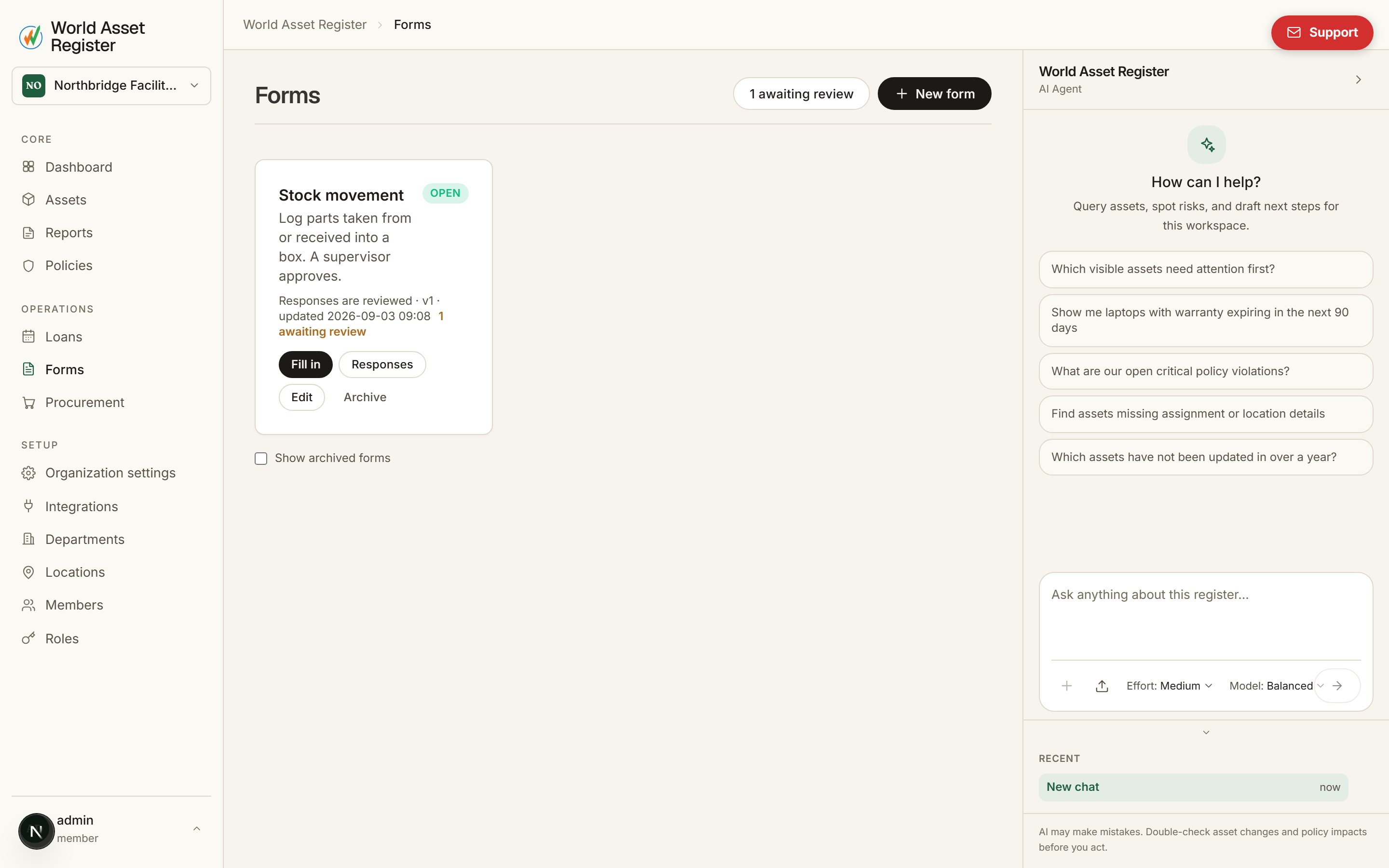
A form is a short questionnaire an admin builds once and the team fills in
many times. Each answer changes an asset through a controlled path: the
person filling it in picks the asset, fills in the fields, and sends it. The
change lands on the asset and on its timeline, attributed to them, with a
link back to that exact response.
Use forms for the things people do on the floor every day: counting a
shelf, marking a part as damaged, recording what a delivery cost, updating
the condition of a kit. The person doing the work never needs edit rights
on the asset. The form is the permission.
 ## Who can do what
* **Fill in forms** (`forms.respond`): see open forms and submit them for
any asset you can see. Requesters, Operators and Managers have this by
default.
* **Review responses** (`forms.review`): see every response and approve or
reject the ones waiting. Operators and Managers.
* **Manage forms** (`forms.manage`): build, publish and archive forms.
Managers and Admins.
Whoever publishes a form must be able to edit every field it writes
themselves. That is what lets a Requester change a field through the form
that they could not edit directly. See
[Roles and permissions](/setup/roles-and-permissions).
## Building a form
Go to **Forms** in the sidebar and click **New form**. A form has a name,
an optional description, and a list of **asset sections** with
**instructions** wherever they help.
An asset section is the unit of a form: a picker that asks which asset the
section is about, and underneath it the fields to change on that asset.
* **Asset section**: give the picker a label ("Which laptop?") and,
optionally, limit it to a category and its sub-categories. Untick
*Required question* to make a section optional, so a respondent can
skip it. A red asterisk marks everything a form needs before it can be
published.
* **Set a field** (inside a section): writes one value to a field on the
asset picked in that section. Any text, number, date, yes/no, select or
multi-select field on the asset's category can be set this way. Money
fields take an amount and a currency.
* **Instructions**: a heading and some text. They can sit between sections
or inside one, above the field they explain.
Respondents are only offered assets whose category actually has every
field a section sets, so a "laptop check" never offers a printer. A form
can have several sections, which is how one submission updates several
assets: "which laptop and which charger?", or "the old unit and its
replacement".
## Who can do what
* **Fill in forms** (`forms.respond`): see open forms and submit them for
any asset you can see. Requesters, Operators and Managers have this by
default.
* **Review responses** (`forms.review`): see every response and approve or
reject the ones waiting. Operators and Managers.
* **Manage forms** (`forms.manage`): build, publish and archive forms.
Managers and Admins.
Whoever publishes a form must be able to edit every field it writes
themselves. That is what lets a Requester change a field through the form
that they could not edit directly. See
[Roles and permissions](/setup/roles-and-permissions).
## Building a form
Go to **Forms** in the sidebar and click **New form**. A form has a name,
an optional description, and a list of **asset sections** with
**instructions** wherever they help.
An asset section is the unit of a form: a picker that asks which asset the
section is about, and underneath it the fields to change on that asset.
* **Asset section**: give the picker a label ("Which laptop?") and,
optionally, limit it to a category and its sub-categories. Untick
*Required question* to make a section optional, so a respondent can
skip it. A red asterisk marks everything a form needs before it can be
published.
* **Set a field** (inside a section): writes one value to a field on the
asset picked in that section. Any text, number, date, yes/no, select or
multi-select field on the asset's category can be set this way. Money
fields take an amount and a currency.
* **Instructions**: a heading and some text. They can sit between sections
or inside one, above the field they explain.
Respondents are only offered assets whose category actually has every
field a section sets, so a "laptop check" never offers a printer. A form
can have several sections, which is how one submission updates several
assets: "which laptop and which charger?", or "the old unit and its
replacement".
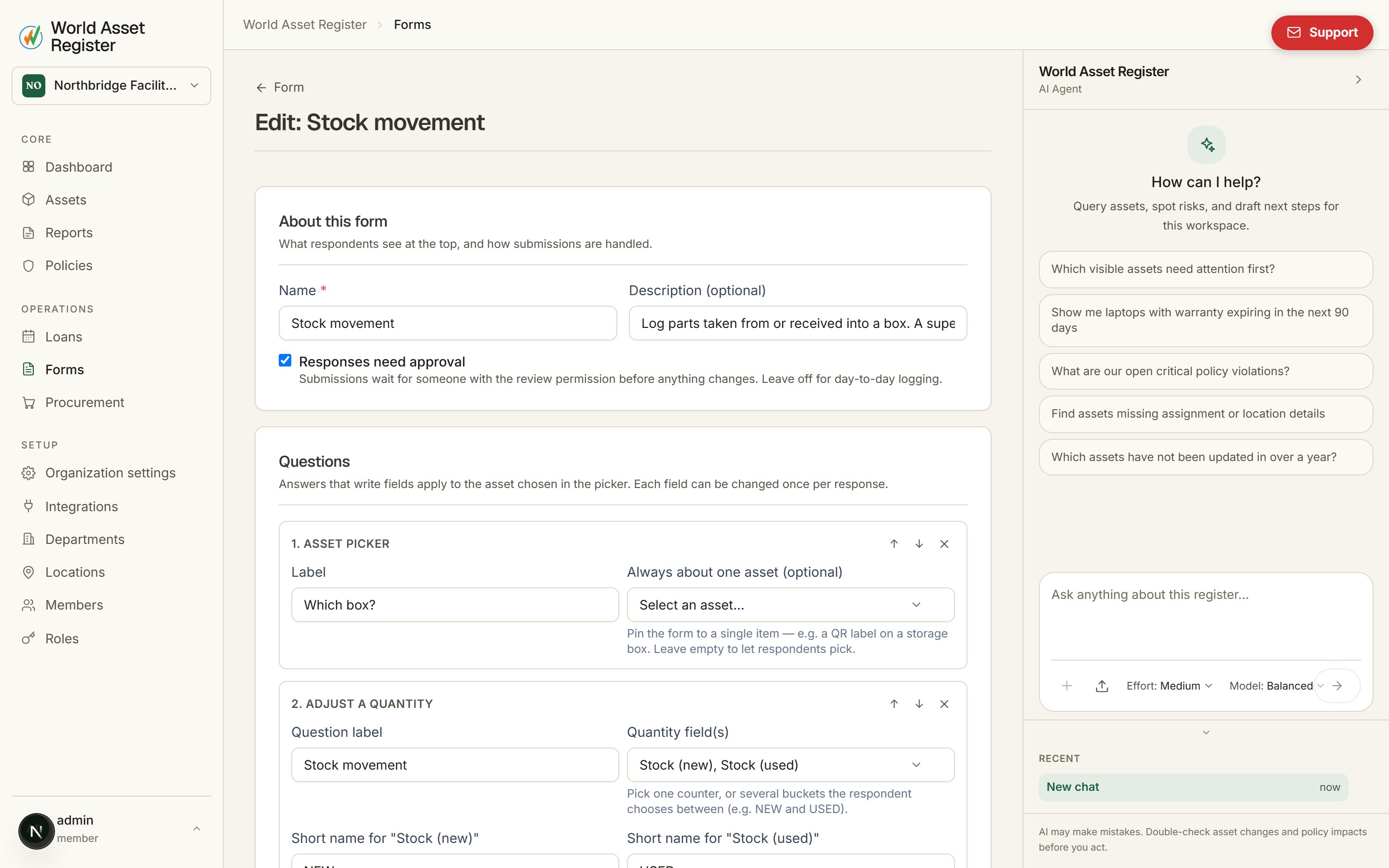 **Responses need approval** makes submissions wait for a reviewer before
anything changes. Leave this off for day-to-day logging, turn it on for
anything a supervisor should sign off.
You can also **restrict which assets** the form can be used on with the
same rule builder as policies and reports, on top of each section's own
category.
**Save draft** keeps the form private. **Save & publish** makes it
available to everyone who can fill in forms. Editing a published form
changes the draft only; respondents keep answering the published version
until you publish again, and every response remembers which version it
answered.
## Filling one in
Open **Forms**, pick the form, and the sections appear in order. In each
section choose the asset, then fill in the fields beneath it. The picker
only lists assets that have those fields. Each field starts from what the
asset holds now, so you can see what you are changing, and a multi-select
keeps its existing ticks when you add one. A field you leave as it is
changes nothing.
**Responses need approval** makes submissions wait for a reviewer before
anything changes. Leave this off for day-to-day logging, turn it on for
anything a supervisor should sign off.
You can also **restrict which assets** the form can be used on with the
same rule builder as policies and reports, on top of each section's own
category.
**Save draft** keeps the form private. **Save & publish** makes it
available to everyone who can fill in forms. Editing a published form
changes the draft only; respondents keep answering the published version
until you publish again, and every response remembers which version it
answered.
## Filling one in
Open **Forms**, pick the form, and the sections appear in order. In each
section choose the asset, then fill in the fields beneath it. The picker
only lists assets that have those fields. Each field starts from what the
asset holds now, so you can see what you are changing, and a multi-select
keeps its existing ticks when you add one. A field you leave as it is
changes nothing.
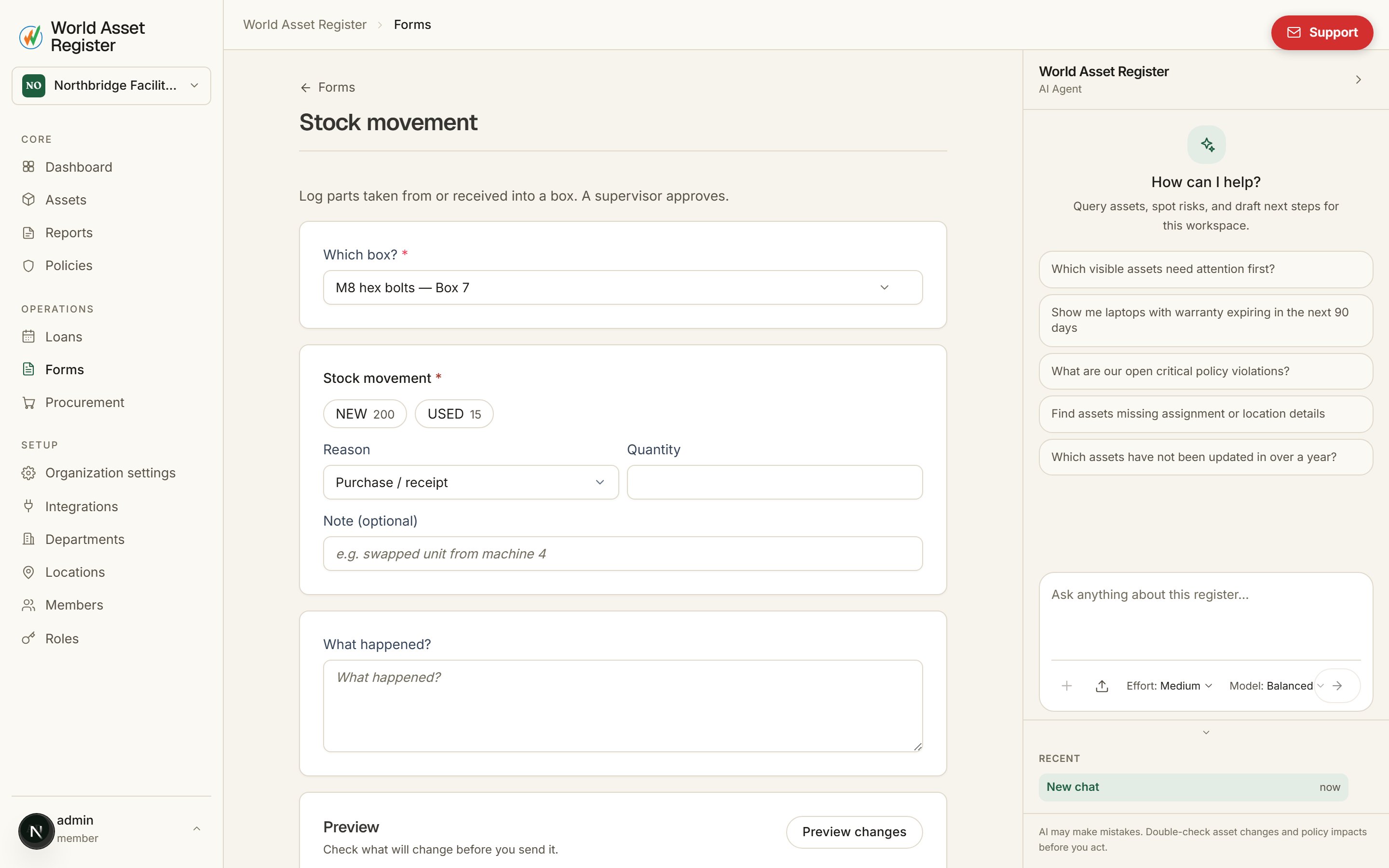 Nothing is saved until you press **Submit form**. On a form that needs
approval the submission waits for a reviewer instead of changing the
assets straight away. A money question shows the amount next to its
currency, so a cost can be entered in the currency it was paid in. If
something is missing, the form tells you at the top and asks for the fix
before it will accept the submission.
Afterwards you see what changed on each asset, with links to the response
and to the assets. On each asset's **Timeline** the entry reads *Form
applied* followed by the form's name, says who did it via a form, lists the
fields that changed, and opens the response.
### From an asset
On any asset's page, **Fill in a form** lists the open forms that fit
that asset. Pick one and the asset is already chosen, in the first section
whose category rule accepts it. The fill page also accepts an asset in its
address, so a printed QR code can point straight at *the* form for *that*
asset.
### On the phone
The mobile app has the same **Forms** tile on its home screen and the
same **Fill in a form** card on every asset. The flow matches the web:
pick the asset, answer, submit.
## Reviewing responses
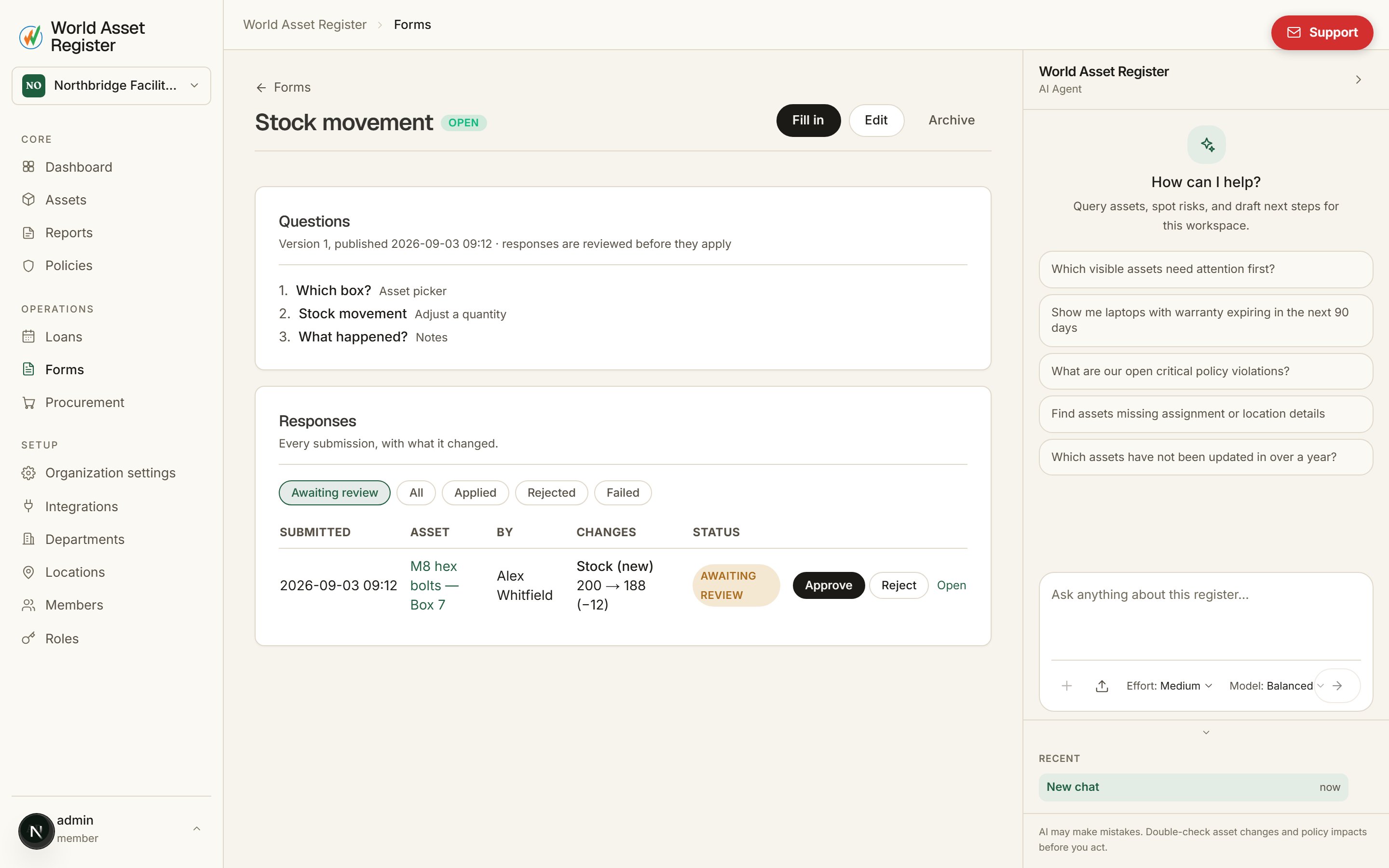
A form's page lists every response with what it changed and who sent it.
Forms that need approval show how many are waiting, on the form and on
the Forms page. Open a waiting response, check the changes, and
**Approve** or **Reject**, with a note if you like. The asset's timeline
shows the submission as *awaiting review* until then, and afterwards
either the applied change or the rejection.
Nothing is saved until you press **Submit form**. On a form that needs
approval the submission waits for a reviewer instead of changing the
assets straight away. A money question shows the amount next to its
currency, so a cost can be entered in the currency it was paid in. If
something is missing, the form tells you at the top and asks for the fix
before it will accept the submission.
Afterwards you see what changed on each asset, with links to the response
and to the assets. On each asset's **Timeline** the entry reads *Form
applied* followed by the form's name, says who did it via a form, lists the
fields that changed, and opens the response.
### From an asset
On any asset's page, **Fill in a form** lists the open forms that fit
that asset. Pick one and the asset is already chosen, in the first section
whose category rule accepts it. The fill page also accepts an asset in its
address, so a printed QR code can point straight at *the* form for *that*
asset.
### On the phone
The mobile app has the same **Forms** tile on its home screen and the
same **Fill in a form** card on every asset. The flow matches the web:
pick the asset, answer, submit.
## Reviewing responses
A form's page lists every response with what it changed and who sent it.
Forms that need approval show how many are waiting, on the form and on
the Forms page. Open a waiting response, check the changes, and
**Approve** or **Reject**, with a note if you like. The asset's timeline
shows the submission as *awaiting review* until then, and afterwards
either the applied change or the rejection.
 Approving writes the values the respondent entered; a response that
touches several assets is applied to all of them together.
## Good forms to start with
* **Shelf count**: one section limited to *Consumable parts*, setting the
stock count field, no approval.
* **Condition check**: one section with no category, setting
**Condition**, so it works for any asset that has that field.
* **Swap-out**: two sections ("the unit coming out" and "the unit going
in"), each setting **Lifecycle stage**, approval on.
Approving writes the values the respondent entered; a response that
touches several assets is applied to all of them together.
## Good forms to start with
* **Shelf count**: one section limited to *Consumable parts*, setting the
stock count field, no approval.
* **Condition check**: one section with no category, setting
**Condition**, so it works for any asset that has that field.
* **Swap-out**: two sections ("the unit coming out" and "the unit going
in"), each setting **Lifecycle stage**, approval on.