> ## Documentation Index
> Fetch the complete documentation index at: https://docs.worldassetregister.com/llms.txt
> Use this file to discover all available pages before exploring further.
# The asset register
> Finding, filtering and viewing everything you own
The register is the heart of the product: one searchable list of every
asset in your organisation. Everything else in this manual (imports,
policies, reports, integrations) ultimately reads from or writes to this
page.
 ## Two ways to view it
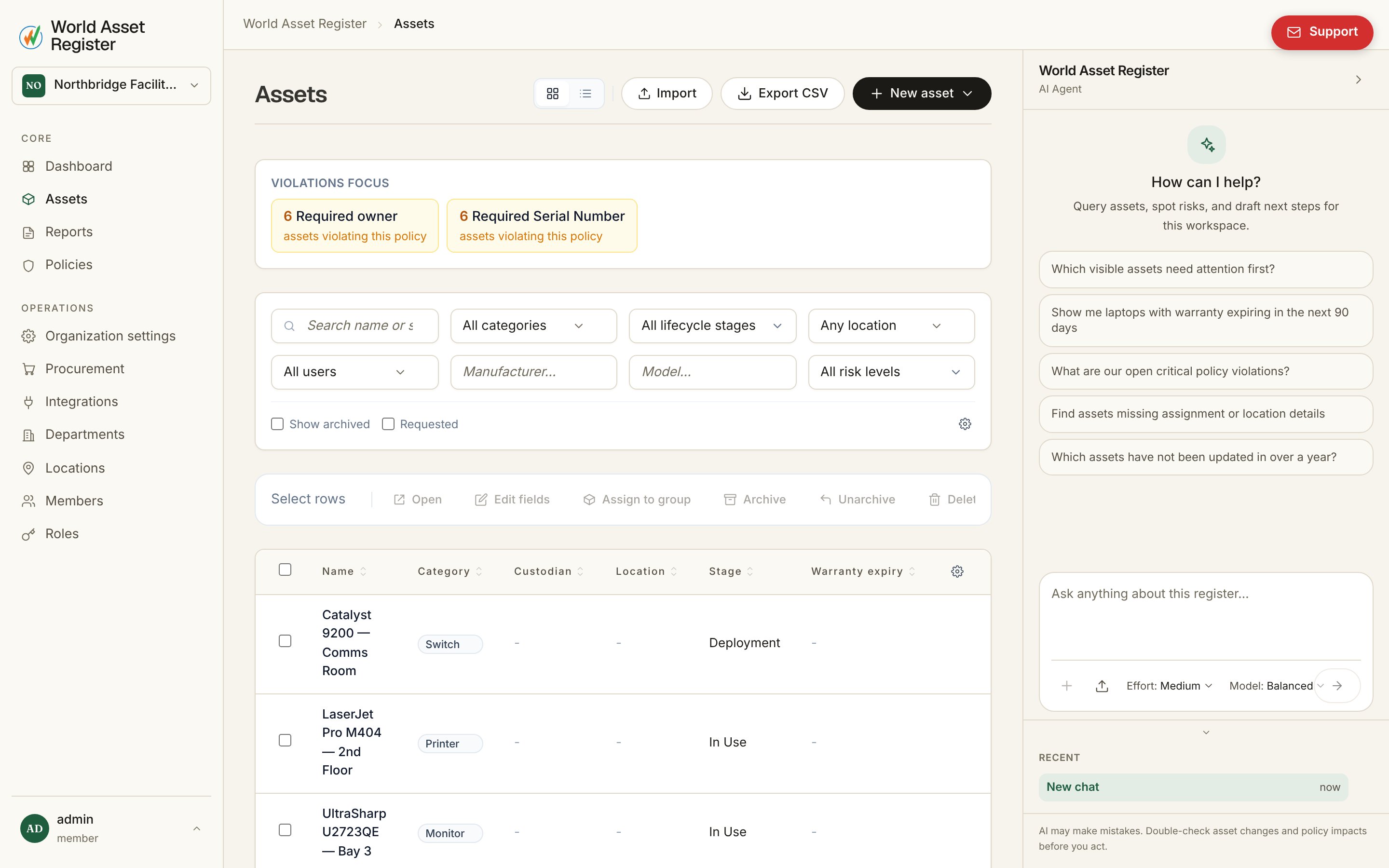
The toggle at the top right switches between two layouts:
* **Card view**: a visual grid, one card per asset. Best for browsing and
for teams that recognise things by sight.
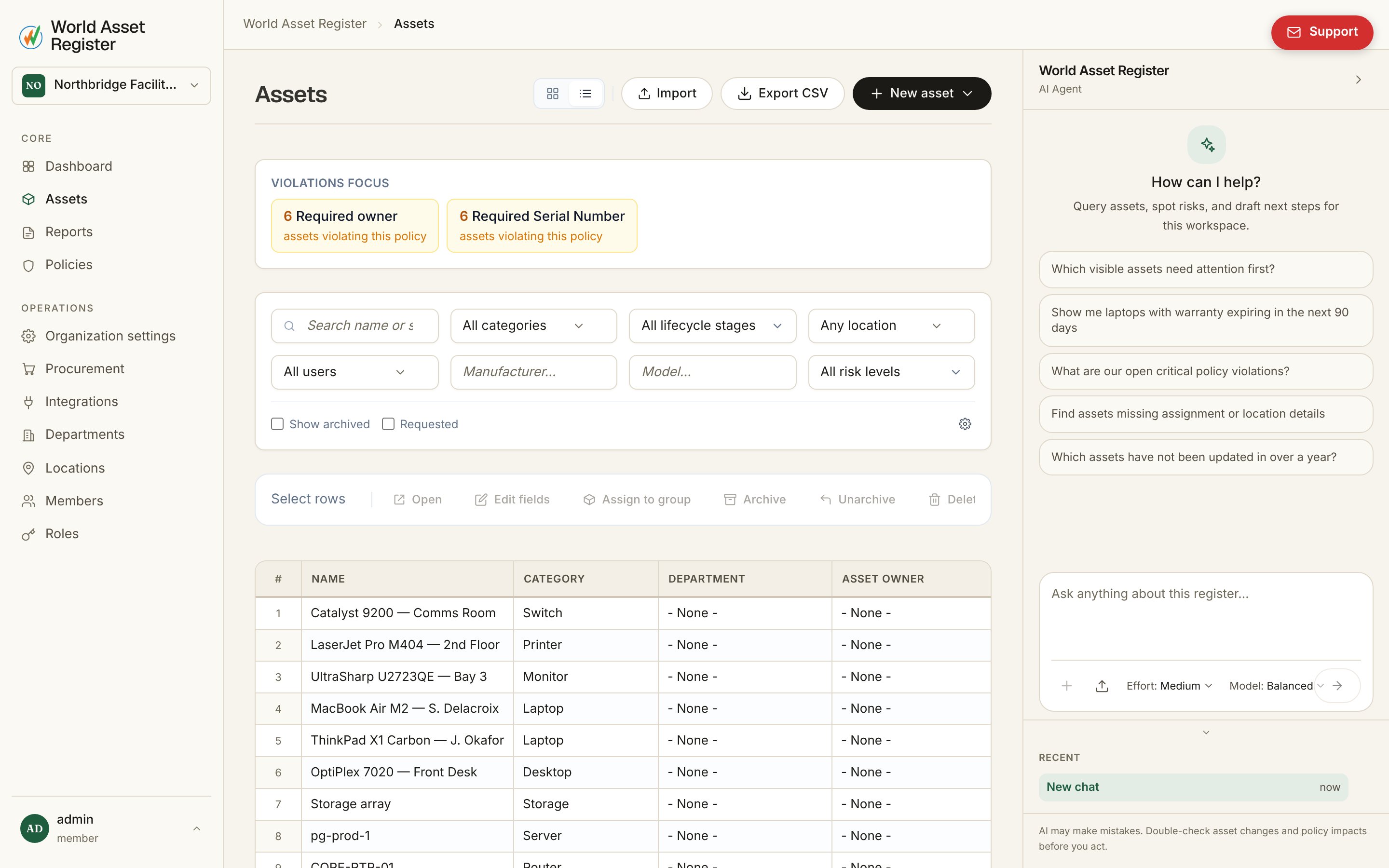
* **Spreadsheet view**: a dense, editable grid. Click a cell to edit it in
place, move around with **Tab** and **Enter**, and double-click the blue
handle on a selected cell to fill its value down the column. It works
exactly like a spreadsheet, except every change is saved, validated and
audit-logged. Columns you don't have permission to edit simply aren't
editable.
## Two ways to view it
The toggle at the top right switches between two layouts:
* **Card view**: a visual grid, one card per asset. Best for browsing and
for teams that recognise things by sight.
* **Spreadsheet view**: a dense, editable grid. Click a cell to edit it in
place, move around with **Tab** and **Enter**, and double-click the blue
handle on a selected cell to fill its value down the column. It works
exactly like a spreadsheet, except every change is saved, validated and
audit-logged. Columns you don't have permission to edit simply aren't
editable.
 ## Finding things
Every field on an asset can be searched or filtered, built-in fields and
your own custom fields alike.
* **Search** matches against name and serial number, the two things
people actually have in hand. For text matching on any other field, add
that field as a filter.
* **Filters** live in a row above the list. Each filter is typed to its
field. Number and currency fields filter by range, dates by period,
people and locations by picking from your directory. Use the edit
filters control to add or remove filter slots, so the row shows exactly
the filters your team actually uses.
* **Group chips**: if you've created asset groups (say *Head office
refresh 2026* or *Loan pool*), they appear as coloured chips. Click one
to see just that group's assets.
* **Violation chips**: when a [policy](/operate/policies) currently has
violations, a chip appears for it. Click it to see exactly the assets
breaking that rule.
Filters are part of the page address, so you can bookmark a filtered view
or paste the link to a colleague and they'll see exactly what you see.
The AI assistant can also build a filtered view for you. Ask it for
"laptops with no custodian bought before 2024" and it applies the result
to this page as a labelled filter you can clear like any other.
## Columns and sorting
The columns are yours to choose. Add any field, including custom fields
and the structural **Added** and **Last updated** dates, from the add
column control, and drop the ones you don't need. **Name** and
**Category** always stay. Click a column heading to sort (numbers and
currencies sort numerically, dates chronologically, people and locations
by name). Pages show 20, 50, 100 or 500 assets at a time.
## Adding assets
The **New asset** button offers four ways in, fastest first:
## Finding things
Every field on an asset can be searched or filtered, built-in fields and
your own custom fields alike.
* **Search** matches against name and serial number, the two things
people actually have in hand. For text matching on any other field, add
that field as a filter.
* **Filters** live in a row above the list. Each filter is typed to its
field. Number and currency fields filter by range, dates by period,
people and locations by picking from your directory. Use the edit
filters control to add or remove filter slots, so the row shows exactly
the filters your team actually uses.
* **Group chips**: if you've created asset groups (say *Head office
refresh 2026* or *Loan pool*), they appear as coloured chips. Click one
to see just that group's assets.
* **Violation chips**: when a [policy](/operate/policies) currently has
violations, a chip appears for it. Click it to see exactly the assets
breaking that rule.
Filters are part of the page address, so you can bookmark a filtered view
or paste the link to a colleague and they'll see exactly what you see.
The AI assistant can also build a filtered view for you. Ask it for
"laptops with no custodian bought before 2024" and it applies the result
to this page as a labelled filter you can clear like any other.
## Columns and sorting
The columns are yours to choose. Add any field, including custom fields
and the structural **Added** and **Last updated** dates, from the add
column control, and drop the ones you don't need. **Name** and
**Category** always stay. Click a column heading to sort (numbers and
currencies sort numerically, dates chronologically, people and locations
by name). Pages show 20, 50, 100 or 500 assets at a time.
## Adding assets
The **New asset** button offers four ways in, fastest first:
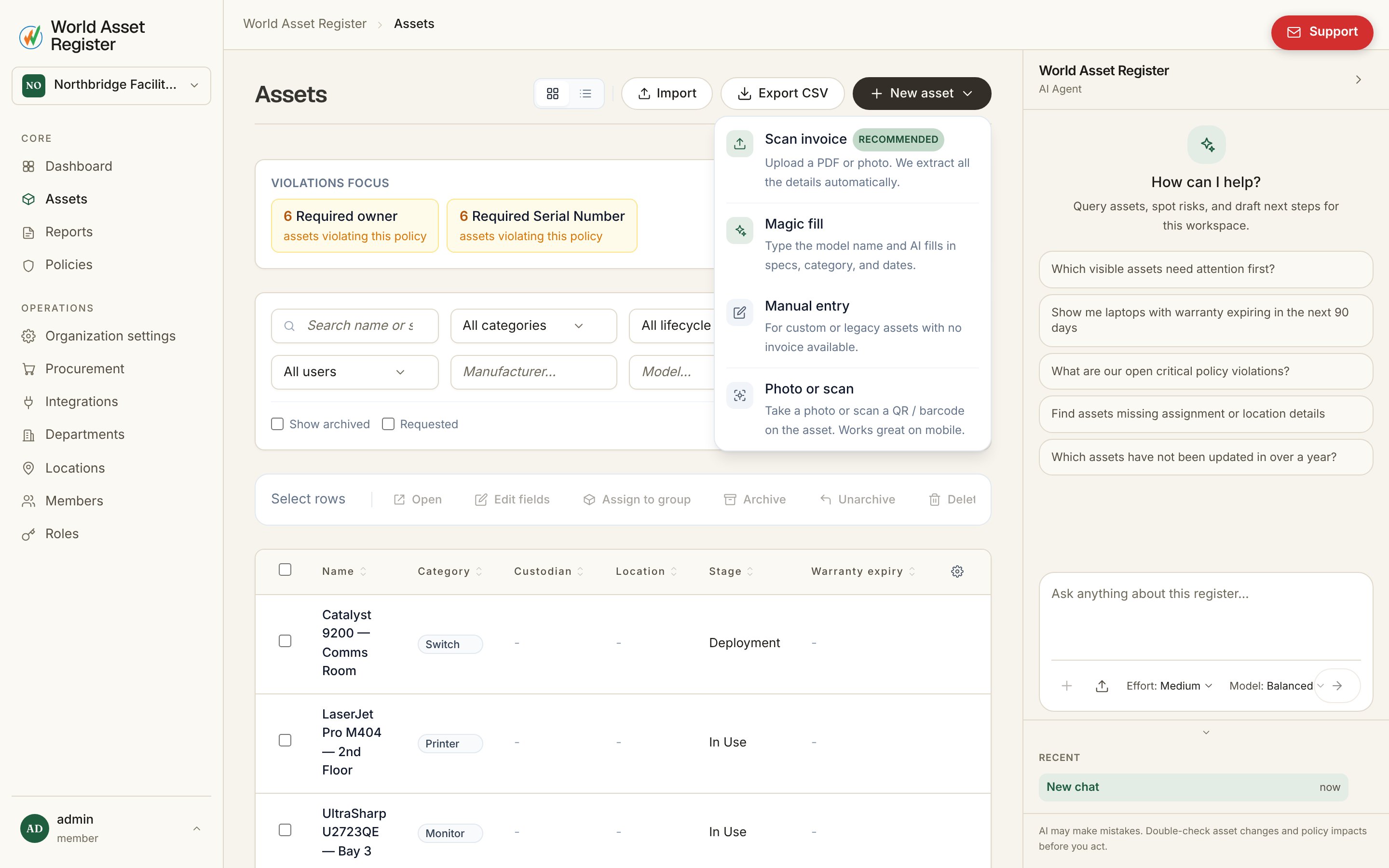 * **Scan invoice** *(recommended)*: upload a supplier invoice as a PDF or
photo. The details (items, costs, dates, supplier) are extracted
automatically into draft assets for you to review.
* **Magic fill**: type a model name ("ThinkPad X1 Carbon Gen 12") and AI
fills in the specifications, category and typical dates for you.
* **Manual entry**: the classic form, for custom or legacy assets with no
paperwork.
* **Photo or scan**: take a photo of the asset, or scan a QR code or
barcode already on it. Works great on a phone, which is usually where
you are when you find an unregistered asset.
However an asset is created, you can save it the moment it has a name and
category and finish the rest later. The save button follows you as you
edit.
## Lifecycle stages and archiving
Every asset carries a **lifecycle stage**, from deployment through in
use, in repair, and eventually disposed, which you can filter and report
on like any other field.
Separately from lifecycle, an asset can be **archived**: it disappears
from day-to-day views (and from the filters and counts your team looks
at) but keeps its full history and can be restored at any time. Archived
assets show an **ARCHIVED** badge when you include them, and unarchiving
is one click. Use archiving for things that are gone. Use the disposed
lifecycle stage for things you still want visible in the register.
## Exporting
**Export CSV** exports the register, respecting your current filters, so
"everything at the Melbourne office, as a spreadsheet" is two clicks. For
recurring exports, live data feeds and BI tools, see
[Developer tools](/connect/developer-tools). For formatted documents, see
[Reports](/operate/reports).
* **Scan invoice** *(recommended)*: upload a supplier invoice as a PDF or
photo. The details (items, costs, dates, supplier) are extracted
automatically into draft assets for you to review.
* **Magic fill**: type a model name ("ThinkPad X1 Carbon Gen 12") and AI
fills in the specifications, category and typical dates for you.
* **Manual entry**: the classic form, for custom or legacy assets with no
paperwork.
* **Photo or scan**: take a photo of the asset, or scan a QR code or
barcode already on it. Works great on a phone, which is usually where
you are when you find an unregistered asset.
However an asset is created, you can save it the moment it has a name and
category and finish the rest later. The save button follows you as you
edit.
## Lifecycle stages and archiving
Every asset carries a **lifecycle stage**, from deployment through in
use, in repair, and eventually disposed, which you can filter and report
on like any other field.
Separately from lifecycle, an asset can be **archived**: it disappears
from day-to-day views (and from the filters and counts your team looks
at) but keeps its full history and can be restored at any time. Archived
assets show an **ARCHIVED** badge when you include them, and unarchiving
is one click. Use archiving for things that are gone. Use the disposed
lifecycle stage for things you still want visible in the register.
## Exporting
**Export CSV** exports the register, respecting your current filters, so
"everything at the Melbourne office, as a spreadsheet" is two clicks. For
recurring exports, live data feeds and BI tools, see
[Developer tools](/connect/developer-tools). For formatted documents, see
[Reports](/operate/reports).