> ## Documentation Index
> Fetch the complete documentation index at: https://docs.worldassetregister.com/llms.txt
> Use this file to discover all available pages before exploring further.
# Importing data
> Move your existing records into the register safely
Most registers don't start empty. They start as a spreadsheet, or inside
another tool. The importer is built to move that data in **safely**,
around one promise: *nothing changes until you've seen a preview of
exactly what will happen.*
Open it from **Assets → Import**.
## Step 1: Where is your data from?
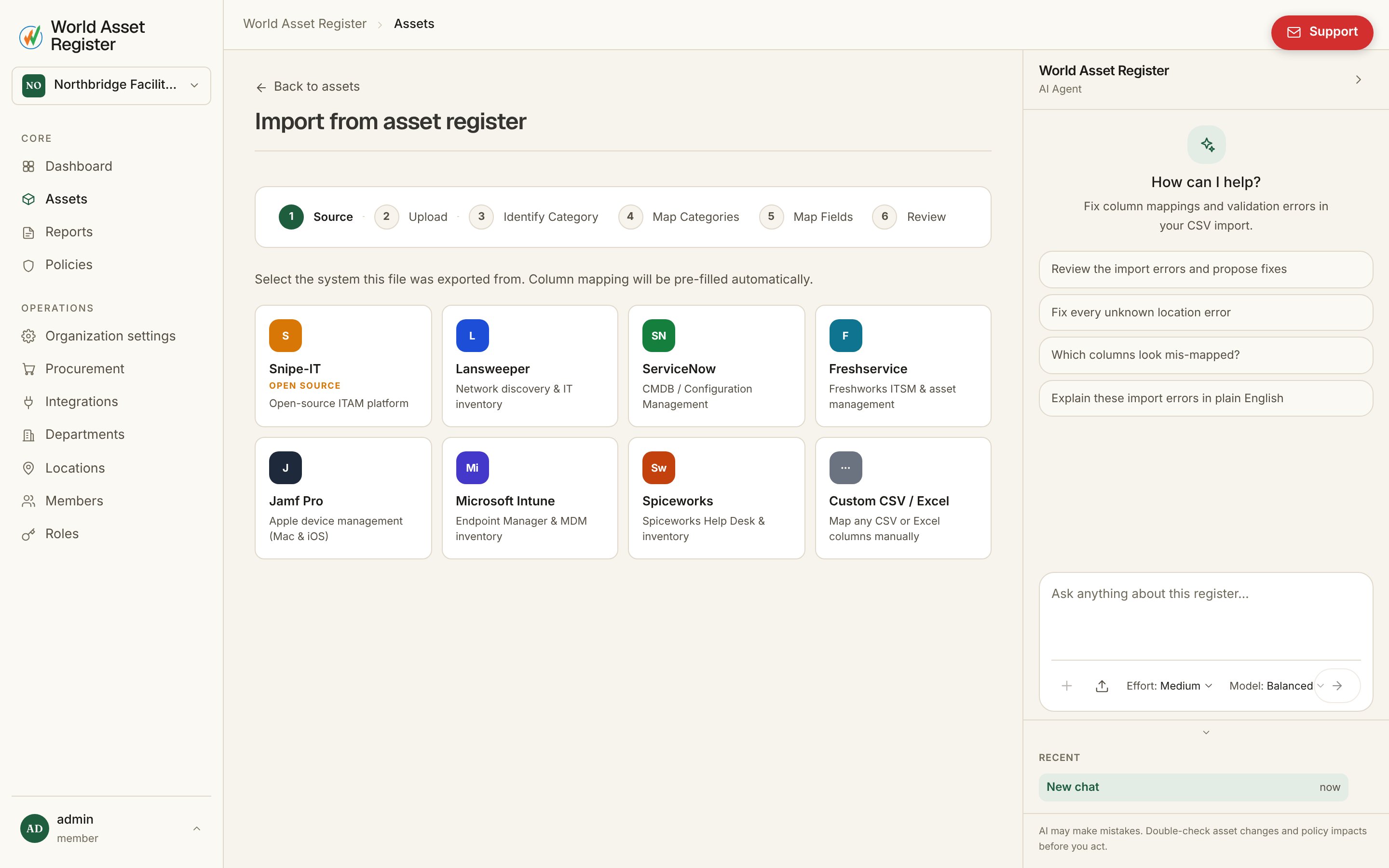 Pick your source system and the importer pre-maps its export format for
you. **Snipe-IT**, **Lansweeper**, **ServiceNow**, **Freshservice**,
**Jamf Pro**, **Microsoft Intune** and **Spiceworks** all have ready-made
profiles, each with notes on how to export from that system. For
anything else, including your own spreadsheets, choose **Custom CSV /
Excel** and map the columns yourself in step 3.
## Step 2: Upload
Drop in a **CSV** or **Excel (.xlsx)** file. The importer reads the
headers and sample rows and carries them through the rest of the wizard,
so you're always mapping against your real data.
## Step 3: Map categories and fields
If your file has its own "type" column (Laptop, Vehicle, Licence, and so
on), the wizard asks which column that is and lets you map each of its
values onto your own [category tree](/setup/categories-and-fields), once
per value, not per row.
Then **Map Fields**: each register field gets a dropdown of your file's
columns, with sample values shown so you can see what you're mapping.
Source profiles arrive pre-mapped, so you only adjust what's different.
Your mappings are remembered, so next month's export from the same system
imports in seconds.
## Step 4: Review (the dry run)
Pick your source system and the importer pre-maps its export format for
you. **Snipe-IT**, **Lansweeper**, **ServiceNow**, **Freshservice**,
**Jamf Pro**, **Microsoft Intune** and **Spiceworks** all have ready-made
profiles, each with notes on how to export from that system. For
anything else, including your own spreadsheets, choose **Custom CSV /
Excel** and map the columns yourself in step 3.
## Step 2: Upload
Drop in a **CSV** or **Excel (.xlsx)** file. The importer reads the
headers and sample rows and carries them through the rest of the wizard,
so you're always mapping against your real data.
## Step 3: Map categories and fields
If your file has its own "type" column (Laptop, Vehicle, Licence, and so
on), the wizard asks which column that is and lets you map each of its
values onto your own [category tree](/setup/categories-and-fields), once
per value, not per row.
Then **Map Fields**: each register field gets a dropdown of your file's
columns, with sample values shown so you can see what you're mapping.
Source profiles arrive pre-mapped, so you only adjust what's different.
Your mappings are remembered, so next month's export from the same system
imports in seconds.
## Step 4: Review (the dry run)
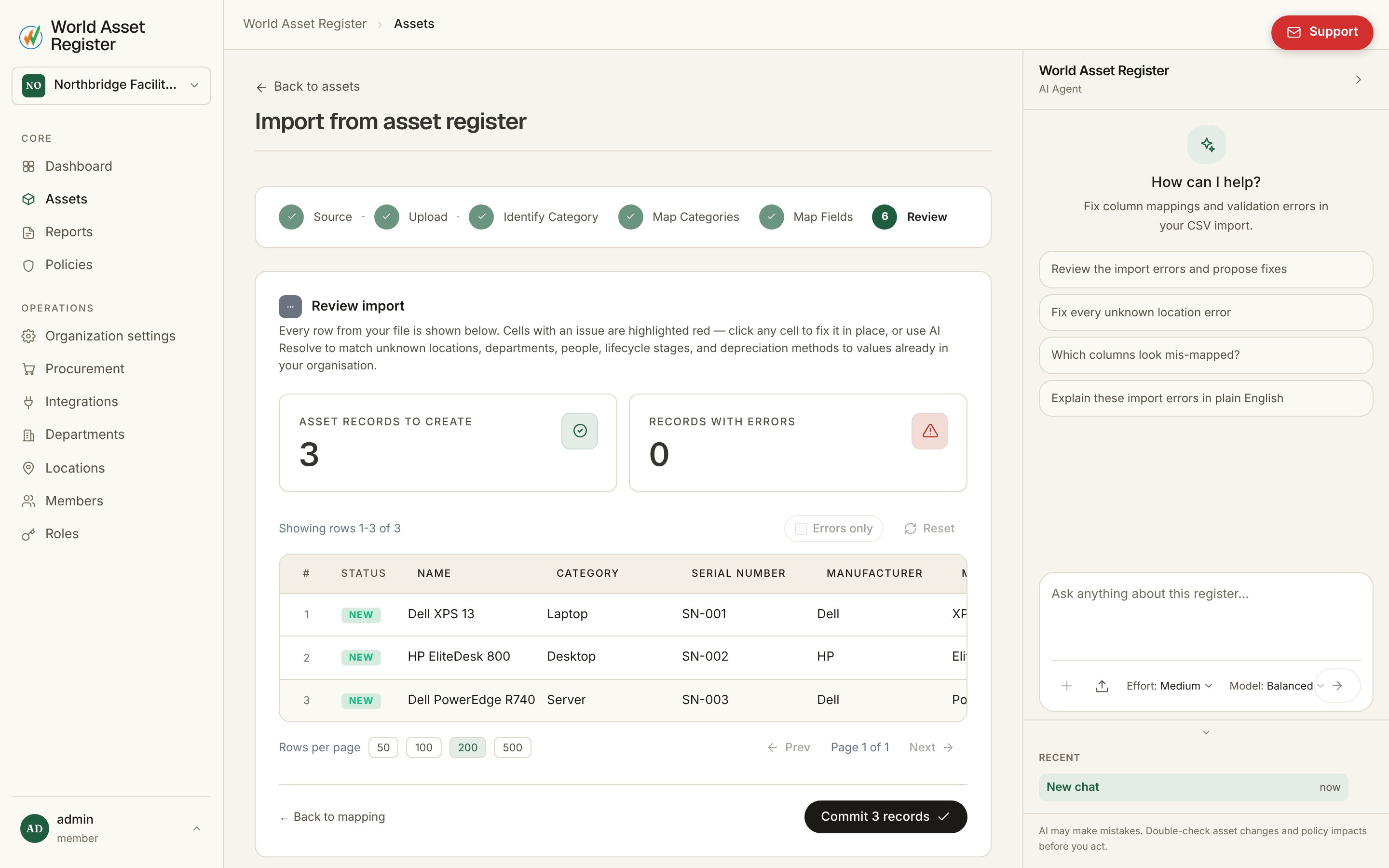 Nothing has been written yet. The review screen shows precisely what
*would* happen:
* **How many asset records will be created**, and how many will be
updated instead when rows match existing assets. Matching uses
identifying fields like serial number, which is what makes re-imports
safe. Importing the same file twice updates assets rather than
duplicating them, so a monthly export from another system can keep the
register current.
* **Row-level problems**, called out per row: an unknown location, a
lifecycle stage that doesn't exist, a duplicate serial *within the
file*. The review grid is editable. Click any cell to fix a value on
the spot.
* **Fix once, apply everywhere.** When a value like a misspelled location
appears in fifty rows, remap it once and every row updates.
**AI Resolve** can do this pass for you, matching unresolved values to
your existing locations, departments, people, lifecycle stages and
depreciation methods.
The importer is deliberately forgiving about formats. `$ 2,499.50`
becomes `2499.50`, `30/06/2026` is understood as a date, lifecycle stages
match regardless of case ("in life" becomes In Use), and common
abbreviations like "SL" or "DDB" resolve to the right depreciation
method. Whitespace is trimmed. What it can't confidently interpret, it
flags. It never guesses silently.
Rows with unresolved errors are **skipped, never half-imported**, and
the wizard asks you to confirm before committing an import that skips
anything.
## Step 5: Commit
Click commit and the import runs. Large files process in the background
with a progress bar, so you can leave the page and carry on working. When
it finishes you're back at the register, looking at your imported assets.
## After the import
* Spot-check a handful of assets: names, categories, serials, stages.
* If something went wrong at scale, don't fix it row by row. Use
[bulk edit](/assets/bulk-editing), or ask an administrator to
[roll the import back](/operate/audit-and-rollback) entirely.
* Set up [policies](/operate/policies). An import is the moment
data quality rules start earning their keep.
Nothing has been written yet. The review screen shows precisely what
*would* happen:
* **How many asset records will be created**, and how many will be
updated instead when rows match existing assets. Matching uses
identifying fields like serial number, which is what makes re-imports
safe. Importing the same file twice updates assets rather than
duplicating them, so a monthly export from another system can keep the
register current.
* **Row-level problems**, called out per row: an unknown location, a
lifecycle stage that doesn't exist, a duplicate serial *within the
file*. The review grid is editable. Click any cell to fix a value on
the spot.
* **Fix once, apply everywhere.** When a value like a misspelled location
appears in fifty rows, remap it once and every row updates.
**AI Resolve** can do this pass for you, matching unresolved values to
your existing locations, departments, people, lifecycle stages and
depreciation methods.
The importer is deliberately forgiving about formats. `$ 2,499.50`
becomes `2499.50`, `30/06/2026` is understood as a date, lifecycle stages
match regardless of case ("in life" becomes In Use), and common
abbreviations like "SL" or "DDB" resolve to the right depreciation
method. Whitespace is trimmed. What it can't confidently interpret, it
flags. It never guesses silently.
Rows with unresolved errors are **skipped, never half-imported**, and
the wizard asks you to confirm before committing an import that skips
anything.
## Step 5: Commit
Click commit and the import runs. Large files process in the background
with a progress bar, so you can leave the page and carry on working. When
it finishes you're back at the register, looking at your imported assets.
## After the import
* Spot-check a handful of assets: names, categories, serials, stages.
* If something went wrong at scale, don't fix it row by row. Use
[bulk edit](/assets/bulk-editing), or ask an administrator to
[roll the import back](/operate/audit-and-rollback) entirely.
* Set up [policies](/operate/policies). An import is the moment
data quality rules start earning their keep.